
There is a surprisingly powerful music-making environment within iOS. iPads and iPhones are increasingly being used as tools for music production and performance, by amateurs and professionals alike.
The iOS vs. Android debate may rage on, but there is no doubt that when it comes to music production beyond a mere hobbyist level, iOS is very well designed to fulfill your audio needs.
In this article, we’ll give you an overview of how to get started with music production on iPhones and iPads with links to guides about all the essential tools required to make music using an iPad or iPhone.
At a Glance
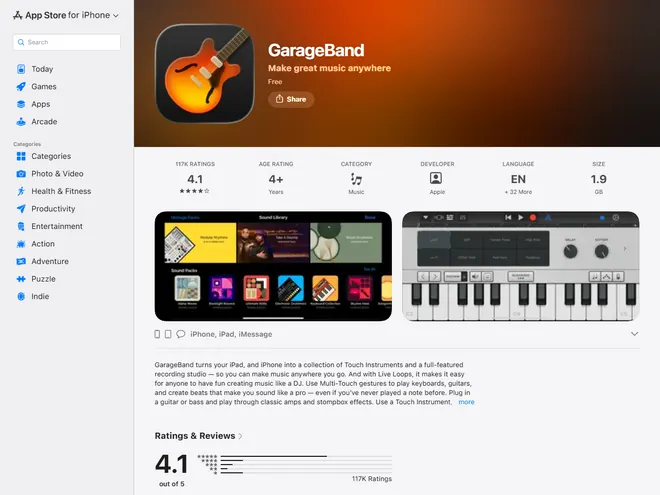
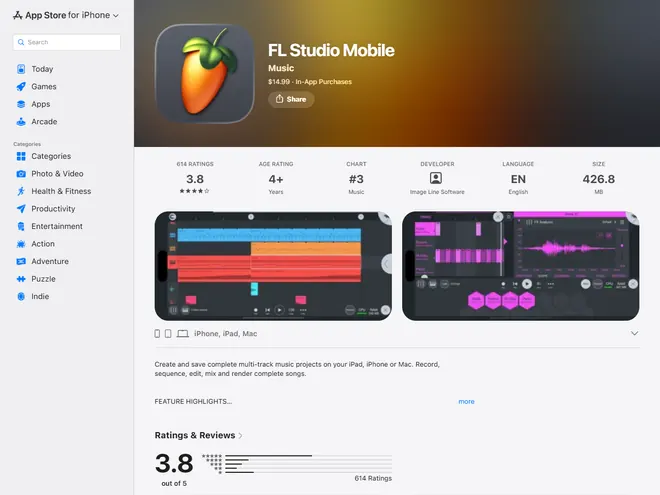
- GarageBand and FL Studio Mobile are great DAWs that are available for iOS devices.
- If you want to record vocals or an instrument, it’s best to connect an audio interface to your iPhone or iPad like the IK Multimedia iRig Pro I/O, IK Multimedia iRig HD 2, or Roland GO:MIXER STUDIO.
- You can also connect an external MIDI controller to your iPad to get the full range of sound and better playability.
- Additionally, you can get other useful accessories like an iPad or iPhone holder for your mic stand, and consider MIDI Controller Apps like the TouchAble Pro.
- You’ll probably experience some latency if you’re using Bluetooth headphones (a slight delay in the audio). Using wired earphones (with an adapter if necessary) is usually a better option.
music making apps and DAWs for iOS
A Digital Audio Workstation or “DAW” is a software program specifically designed to produce, arrange, and mix music. DAWs come with a toolset geared towards numerous aspects of music production, from recording to virtual instruments and effects to advanced audio editing tools.
While DAWs have traditionally been used on desktop computers and laptops for professional production for decades, they have expanded their technology to provide some considerably sophisticated DAWs for the iOS platform.
DAWs on mobile iOS devices can be used to supplement desktop production, or as a tool to produce and record rough ideas and sketches on the go.
If you want an app with a comprehensive feature set and the ability to record and edit multiple layers of sounds with effects, you should look into multitrack DAW apps.
Apple’s GarageBand is a very popular free app modeled after its flagship computer-based DAW Logic. It features an intuitive interface and a lot of bundled sounds, effects, and virtual instruments. Check out our article on the best multitrack DAWs for iPad and iPhone to check out some others.
Today, you can find dozens of apps that can turn your iPhone or iPad into a high-performance touchscreen instrument or effects unit that can be used for live performances.
Alternatively, if you’re looking for some more options, including, more casual music-making, check out our article on music-making apps.
Microphone and Guitar Interface for iPad and iPhone
An iPhone or iPad by itself will have you covered if all you want to do is program some beats and sounds within an app.
If you want to record your voice, guitar, or another instrument in high quality within a DAW on your iPad or iPhone, you will need to connect an audio interface like an iRig HD to your phone or tablet.
Audio Interfaces Compatible with iPad and iPhone

Sure, you could use the device’s internal mic for some basic recording or scratch ideas, but if you want to record at studio-grade quality for a proper production, a dedicated audio interface is your best bet.
An audio interface provides suitable microphone or instrument inputs and converts the signal for recording. Match its cable, power requirements, and app support to the actual iPhone or iPad: USB-C and Lightning setups are different, and the connector shape alone does not establish compatibility.
Choose the interface around what you want to record, then check the exact device connection and power arrangement. A guitar-only interface will not replace an XLR microphone preamp, and a stereo mix sent into a camera app is different from recording separate tracks for later mixing.
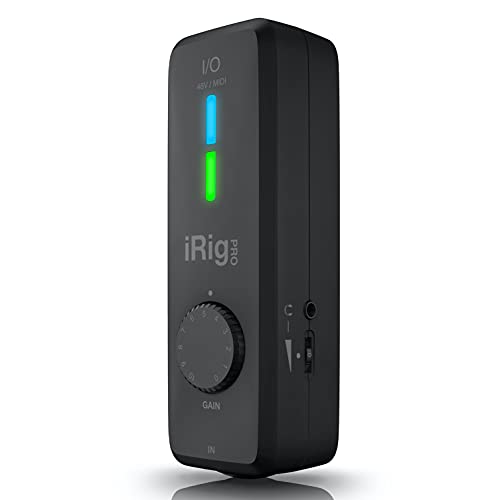
1. IK Multimedia iRig Pro I/O
The iRig Pro I/O is a compact option for recording one microphone, guitar, or bass. Its combination XLR/quarter-inch input includes switchable phantom power for suitable condenser microphones, and it records at up to 24-bit/96 kHz. MIDI input/output and a headphone socket make it useful beyond a simple guitar adapter.
Pros
- Mic or high-impedance instrument input
- USB-C and Lightning cables in current package
Cons
- Only one audio input at a time
The current package includes USB-C, USB-A, and Lightning connection cables. Check the retailer’s package list if buying older stock. Mobile operation can use two AA batteries, while computer USB power and an optional suitable power supply provide other arrangements. Follow IK’s power instructions, especially when using phantom power or charging a connected device.
Choose it for one voice or instrument at a time. If you already own an iTrack Solo, check its connector and current iOS/iPadOS support rather than assuming every USB-C device is supported.
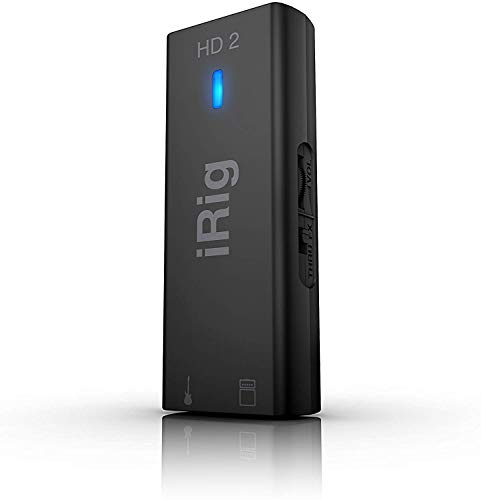
2. IK Multimedia iRig HD 2
The iRig HD 2 remains a useful guitar-and-bass interface. It has a quarter-inch high-impedance input, headphone output with level control, and an Amp Out connection with selectable FX/THRU operation. It records at up to 24-bit/96 kHz and is powered by the connected device.
Pros
- Compact guitar/bass interface
- Headphones and separate amp output
Cons
- No XLR microphone input or phantom power
IK’s current package lists USB-C, USB-A, and Lightning-to-Micro-USB cables. The Micro-USB socket on the interface does not mean you must use an older phone. Check the included cables on the exact retailer package, particularly when buying existing stock. The newer HD X is another option, but the HD 2 still has a current new-stock offer and serves this straightforward recording role.
3. Roland GO:MIXER STUDIO
The GO:MIXER STUDIO suits a performance with several sources or a video project. It provides two microphone/line inputs, a dedicated guitar/bass input, stereo instrument and auxiliary inputs, and headphone monitoring. Its mixer offers onboard EQ, compression, and reverb, with scene memories for recalling setups.
Pros
- Two mic inputs and multiple instrument sources
- Multitrack video workflow with GO:MIXER Cam
Cons
- Lightning setups require additional powered connection planning
Roland’s GO:MIXER Cam app can capture separate input tracks alongside video for later balancing, rather than committing every source to one stereo mix. A normal camera app may use a different routing arrangement, so test the complete setup before a performance.
USB-C iPhones and iPads connect with a suitable data cable. Roland specifies additional power requirements for Lightning devices, including a compatible USB power adapter supplying at least 15W; follow the model’s connection guide and check the required adapters. This is the STUDIO model, so the PRO-X’s cables and specifications should not be assumed to carry over.
MIDI controllers for iPad and iPhone
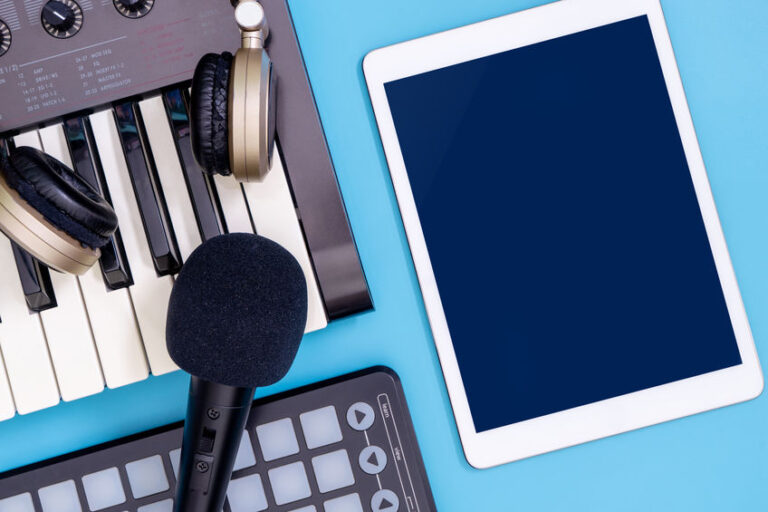
Your iPad can also be used as a virtual instrument which can be controlled via MIDI, thanks to Apple’s CoreMIDI implementation.
Instead of being limited to just playing on the touchscreen, you can connect an external MIDI controller to the iPad to get the full range of sound from it.
An external MIDI controller will send MIDI information from the notes you play to the iPad, which will then generate sound via the virtual instrument app it is running. It also gives musicians access to MIDI keyboards that have better playability than the touchscreen keys on the iPad.
A wide range of MIDI controllers, from manufacturers such as IK Multimedia and Akai, are compatible with the iPad. However, there are a few different ways to connect various MIDI controllers to iPads. We have covered all the ways to get your controller up and running, as well as our recommendations for the best MIDI controllers for the iPad.
iPad or iPhone holder for mic stand
The powerful audio capabilities of iOS devices combined with their portability make them highly suitable for a live environment. It is quite common now to see musicians using phones or tablets to read lyrics or notation, trigger backing tracks, or use as virtual instruments.
In such cases, it’s a good idea to invest in a phone tablet holder that can attach to your mic stand and leave your hands free. We’ve curated a list of the best phone tablet holders for mic stands.
Other Considerations and Interesting Apps
The touch interface, portability, and various connectivity options of an iPhone or iPad make it a very versatile tool in music production. Whereas traditional hardware controllers and effects are limited to a single form factor and function, an iPad’s touchscreen can be adapted to virtually emulate any sort of control surface, from keyboards to trigger pads and more.
Apps like touchAble Pro can turn the iPad or iPhone into a controller for Ableton on a computer. It is designed around Live’s Session View, mixer, devices, and MIDI editing, rather than controlling Logic Pro. These are known as MIDI Controller Apps for iOS, (not to be confused with actual physical MIDI controllers that we previously discussed). This proves especially useful in live situations to control and modulate sounds in real time with incredible ease.
The versatile nature of a smartphone or tablet opens it up to more interesting uses too. For example, apps like GeoShred can turn the iPad into a powerful instrument that can support legato phrases, microtonal tunings, or even depth-controlled features for 3D Touch-supported devices; features that depend on the app, sound, and controller settings. Devices without 3D Touch use alternative gesture controls; do not assume a newer iPad has pressure-sensitive screen hardware.
Check out our article here for a list of some great apps to fully utilize the flexibility that an iPhone or iPad offers.
Latency with Bluetooth Headphones
Using Bluetooth headphones while making music with iOS apps can introduce noticeable latency, which refers to the delay between when a sound is triggered and when it is actually heard. This latency can be disruptive, especially for tasks requiring real-time feedback, like playing virtual instruments or recording in sync with other tracks. A wired connection provides a more direct signal path and tends to offer significantly reduced latency compared to Bluetooth.
However, with the phasing out of the traditional 3.5mm (1/8-inch) headphone jack in many iOS devices, using wired headphones often requires an adapter. This adapter allows users to connect their headphones via the device’s charging or proprietary port. While this can be an additional inconvenience and cost, it’s often a worthy trade-off for those serious about audio production on their iOS devices, as it ensures a more instantaneous audio response.
Summary
An iPad or an iPhone can be a great addition to your music production arsenal. With a slew of excellent apps and support for high-quality hardware, it should not be underestimated as a music-making tool. Indeed, more and more professional musicians have started including the iPad in their standard live and studio rigs for its incredible flexibility and ease of use.
With an ever-expanding market of music apps and companion devices as well as keen support and regular updates from Apple, iPads and iPhones are sure to become a mainstay in 21st-century music production.